 Switchback TV
See Switchback TV
Built for a TV remote: big buttons, short paths, and everything reachable with the arrow keys and OK.
Switchback TV does not include any channels or movies. You add your own M3U playlist or provider login. The screens below were captured with made-up sample channels and programs, so nothing here comes from a real provider; your own channels and guide take their place.
Home
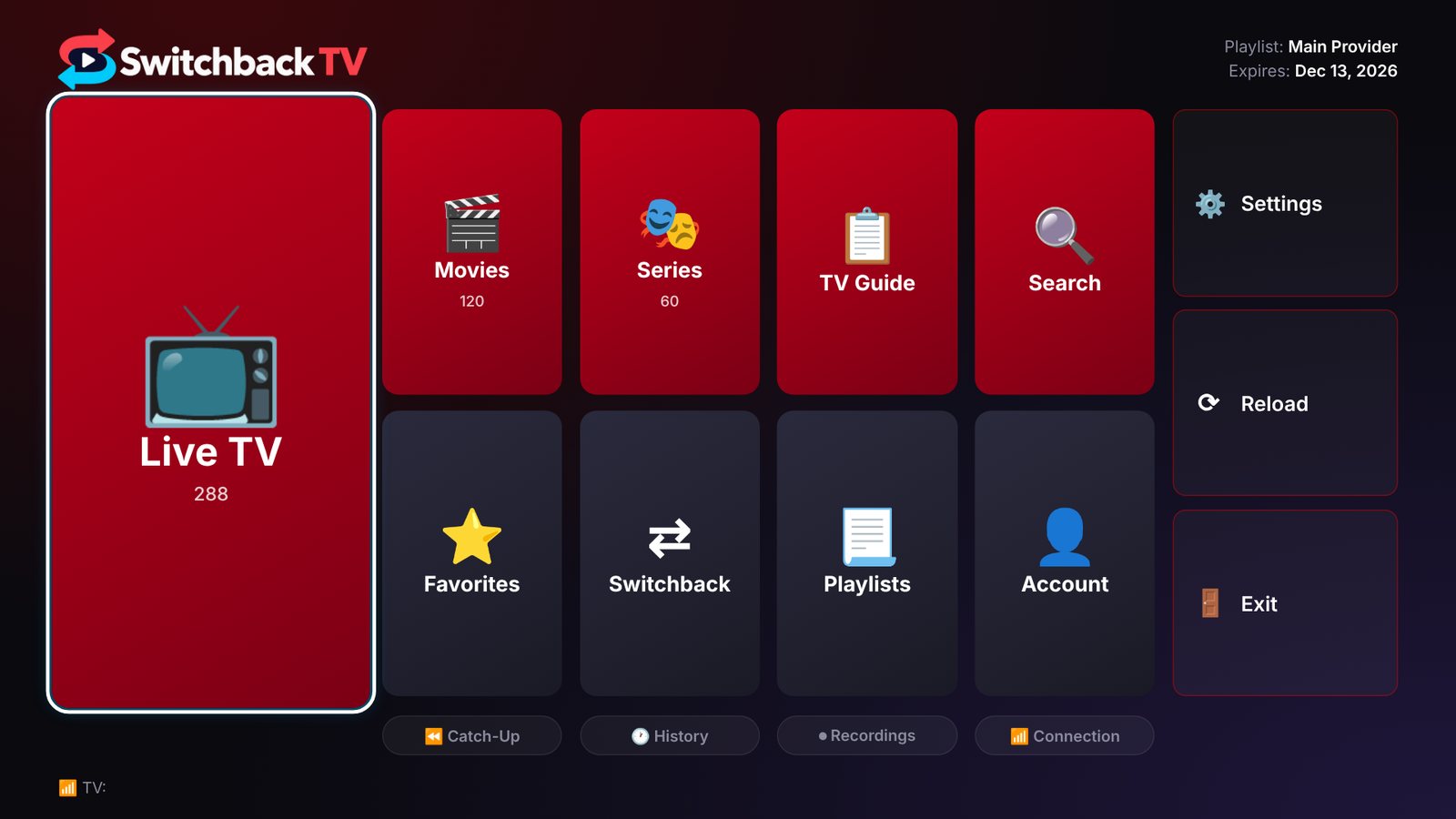
One screen for everything: Live TV, Movies, Series, the TV guide, Search, Favorites, Switchback, Catch-Up, History and Recordings. The arrow keys move, OK opens.
Live TV
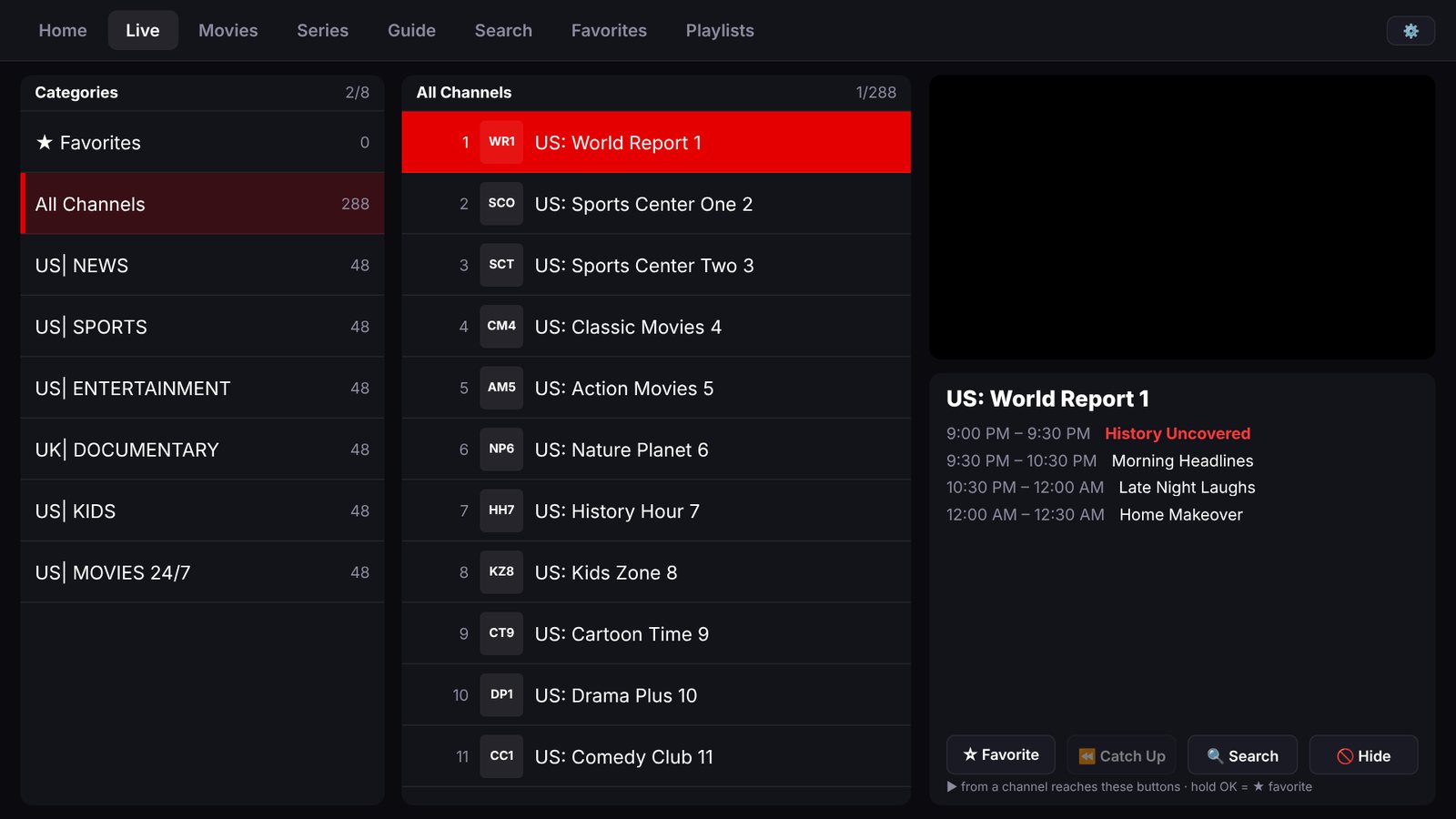
Categories on the left, channels in the middle, and what is on now and next on the right. Hold OK on a channel to star it. Channels that can rewind offer Catch Up.
TV guide
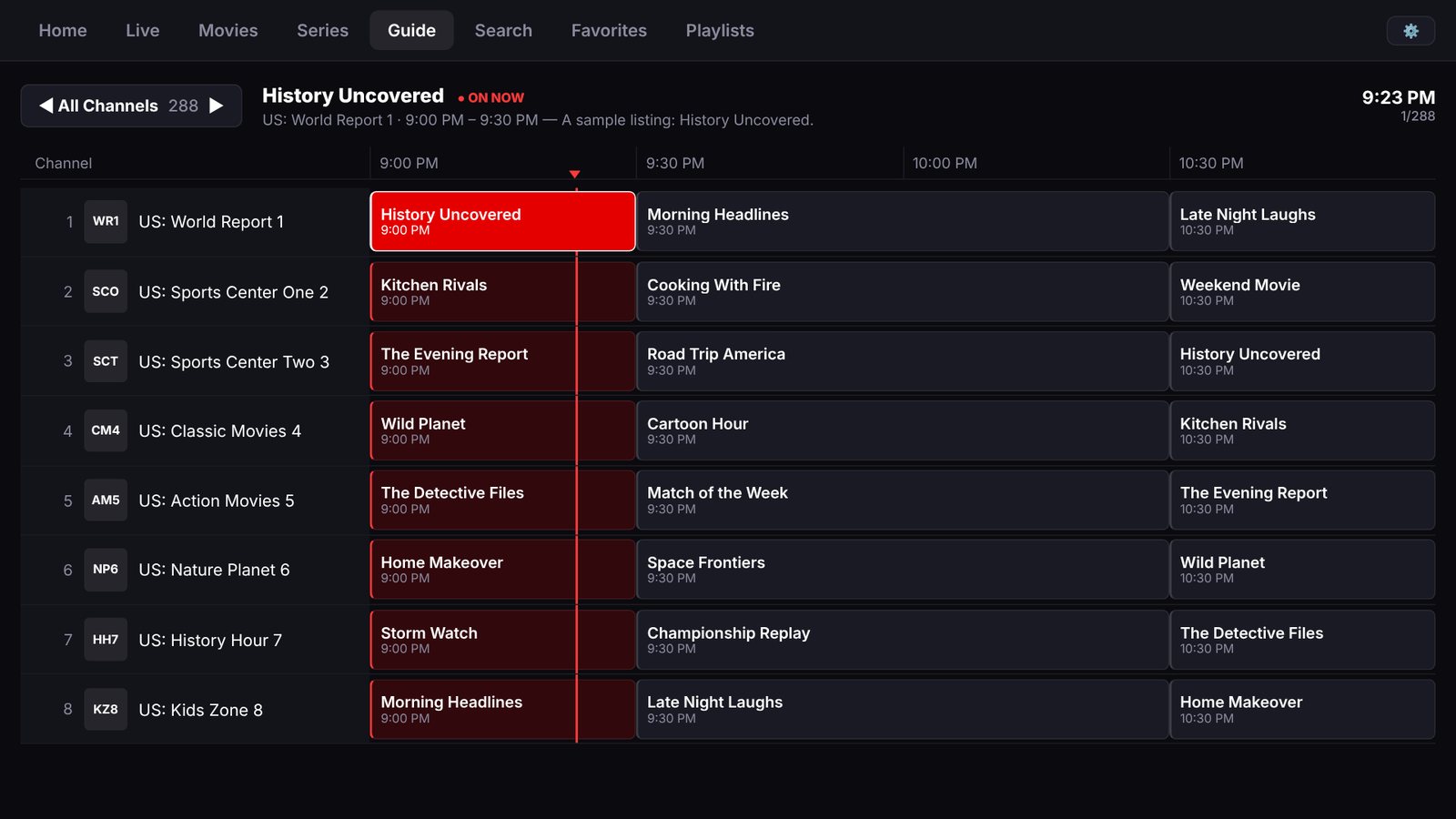
A guide grid with a marker at the current time. Pick a show to watch it, or to schedule a recording.
Search
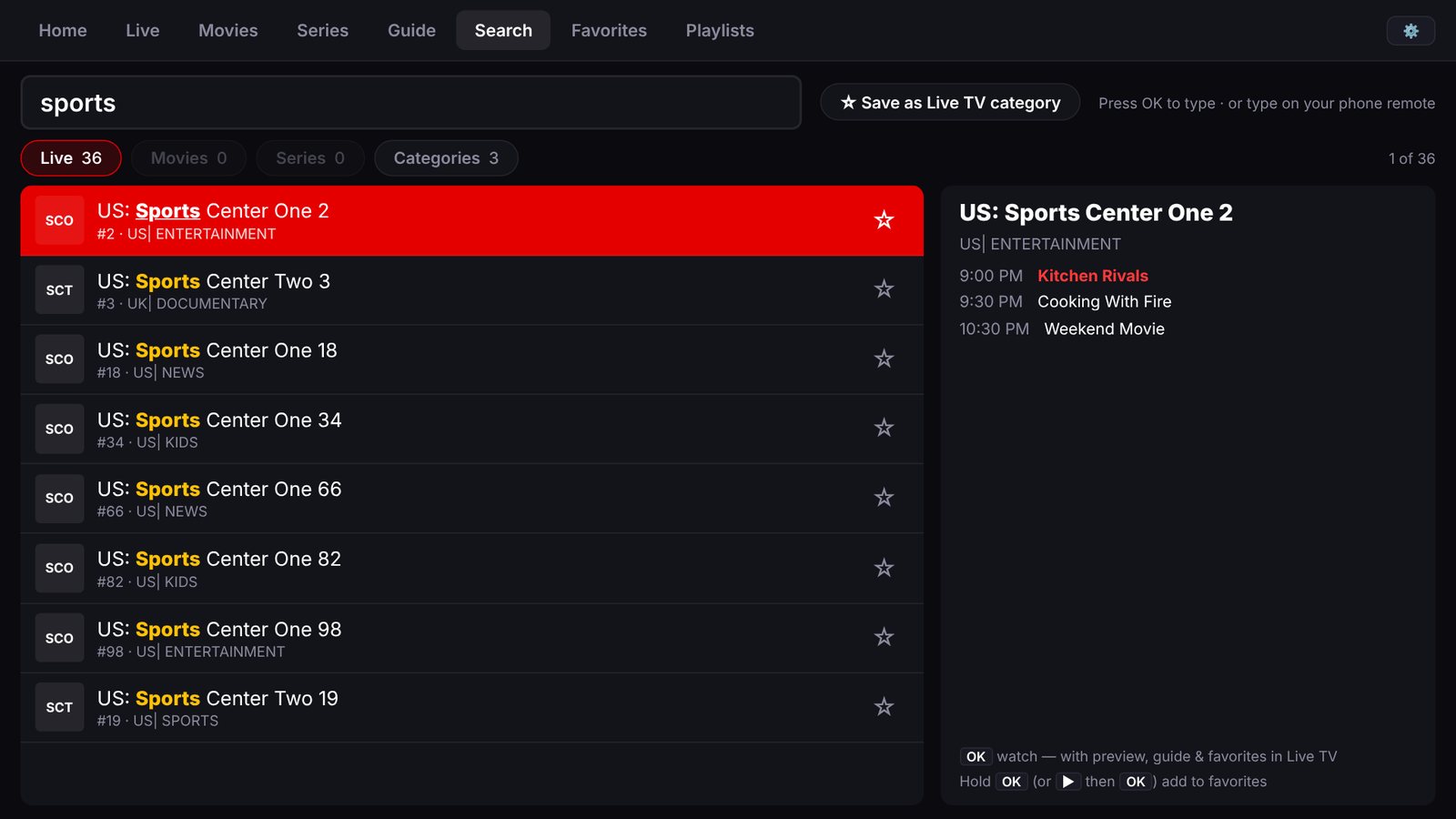
Type part of a word and get channels, movies, series and categories at once. Use the TV keyboard, speak into the remote where your TV supports voice search, or type on your phone. Save a search as its own Live TV category.
Switchback
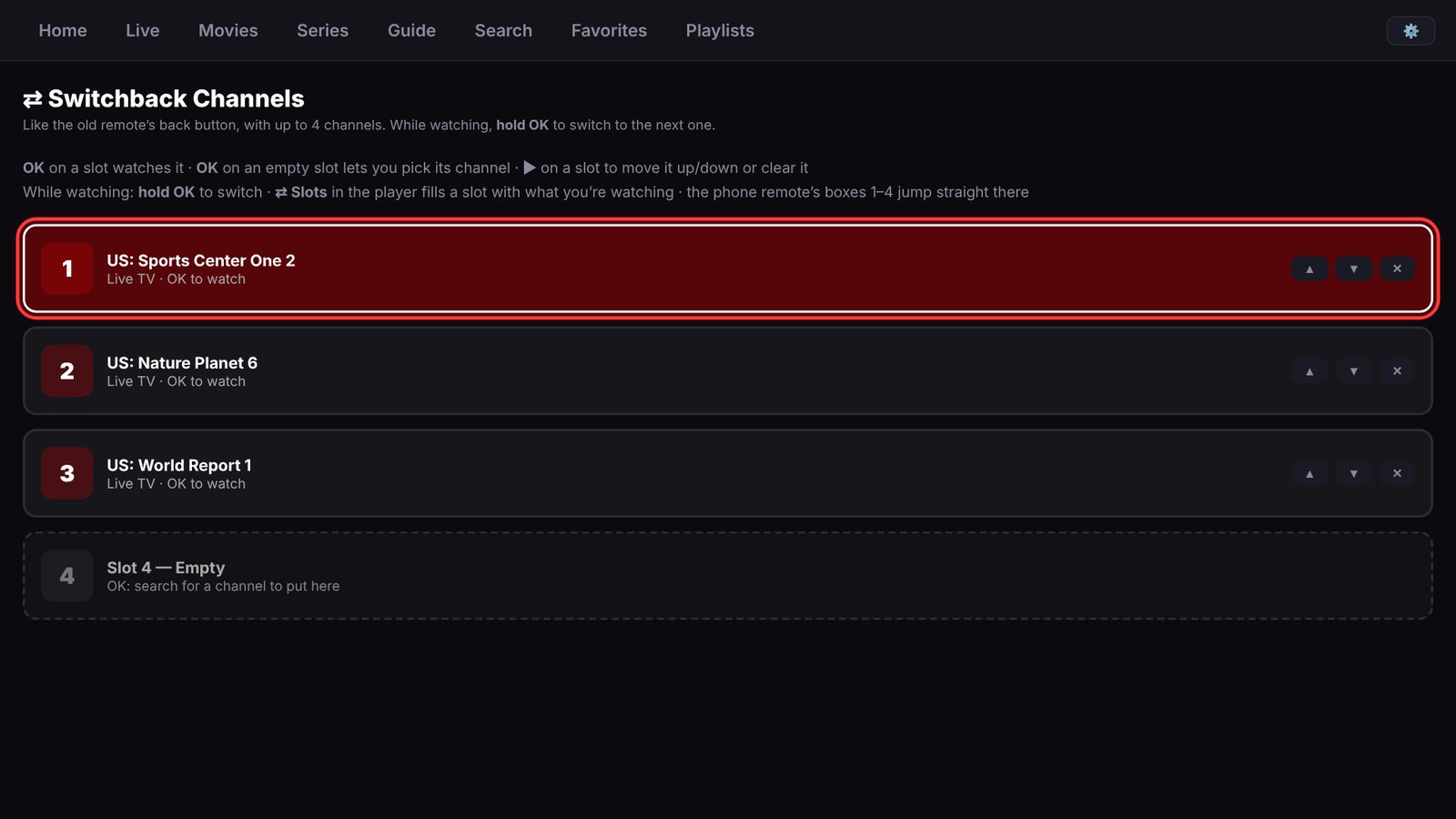
The back button from the old remotes, for streaming. Keep up to four channels in slots, then hold OK while watching to jump to the next one.
Phone remote
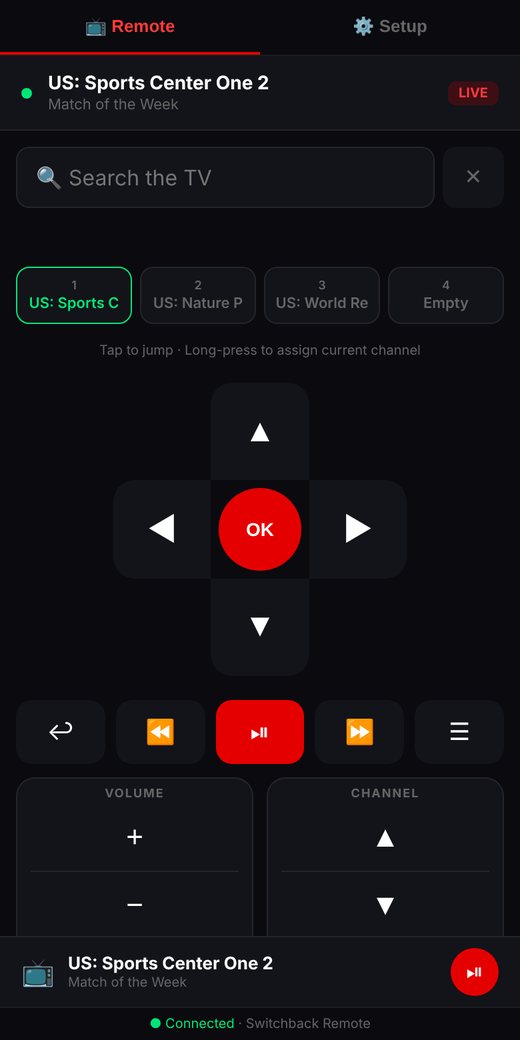
Your phone becomes the remote while the app is running. Scan the code in Settings, enter the PIN, and you get arrows and OK, a search box with your phone's keyboard, the four Switchback slots, playback, volume and channel buttons.
It opens in your phone's browser on the same Wi-Fi, so there is nothing to install. You can add it to your home screen for one-tap access.
Also in the app
- Recording and pausing live TV, with scheduled recordings
- Movies and series pages, with ratings and trailers when you add your own TMDB key
- Favorite folders and a parental PIN for chosen categories
- Picture-in-picture from the home screen, where your TV supports it
- A short setup wizard that trims your list to the countries and kinds of channels you watch
Switchback TV is a player only. You need your own playlist from a provider you subscribe to. Install details