Switchback TVSwitchback TV

Using Switchback TV

What each screen does, and the handy things that are easy to miss. Arrow keys move, OK opens, Back goes back.

Switchback TV does not include any channels or movies; you add your own playlist. The screenshots use made-up channels and programs, so nothing here comes from a real provider. Click or tap a screenshot to see it full size.

Things you might not know

Short ones first. The screens further down show where everything is.

On your remote

Hold OK to add a favorite

In Live TV, Search or Favorites, hold OK on a channel for a moment to add it to your favorites, or to remove it if it is already there. A quick press just plays it.

Live TV · Search · Favorites
Hold OK while watching to jump between channels

While a channel is playing, hold OK to jump to the next channel in your Switchback slots, like the back button on an old remote. Fill the slots on the Switchback screen, or press ⇄ Slots on the player bar to save what you are watching.

Player · Switchback
Up and Down change the channel

While watching, Up and Down (or CH+ and CH− if your remote has them) move to the previous or next channel in the list you started from. If your remote has number keys, type a channel number and the app jumps to it after a moment.

Player
Pick quality, audio and subtitles

Press the ⚙ button on the player bar (or the Menu key) to choose a video quality, another audio track, or subtitles, when the stream offers them.

Player
Set a sleep timer

Press 😴 on the player bar and choose anything from 15 minutes to 2 hours. Playback stops when the time is up.

Player

Recording and pausing live TV

Pause live TV

Press pause while watching a live channel and the app keeps saving from that moment, so play continues where you left off. Press ● Live to jump back to the live picture. This uses the TV's storage and works in the Switchback TV app on your TV.

Player
Record what you are watching

Press ⏺ Rec on the player bar to start recording and ■ Stop rec to finish. Your recordings are listed under Home › Recordings.

Player · Recordings
Record a show from the guide

In the TV Guide, press OK on a show that has not started yet. A box asks whether to record it; pick Yes, record it. Press OK on a scheduled show to cancel. Scheduled shows are listed under Recordings › Scheduled.

TV Guide · Recordings
Watch a show that already aired

On channels where your provider keeps past shows (Live TV shows a ⏪ Catch Up button for them), pick an earlier show in the TV Guide and press OK to watch it from the start.

TV Guide · Live TV · Home › Catch-Up

Finding things

A few letters are enough

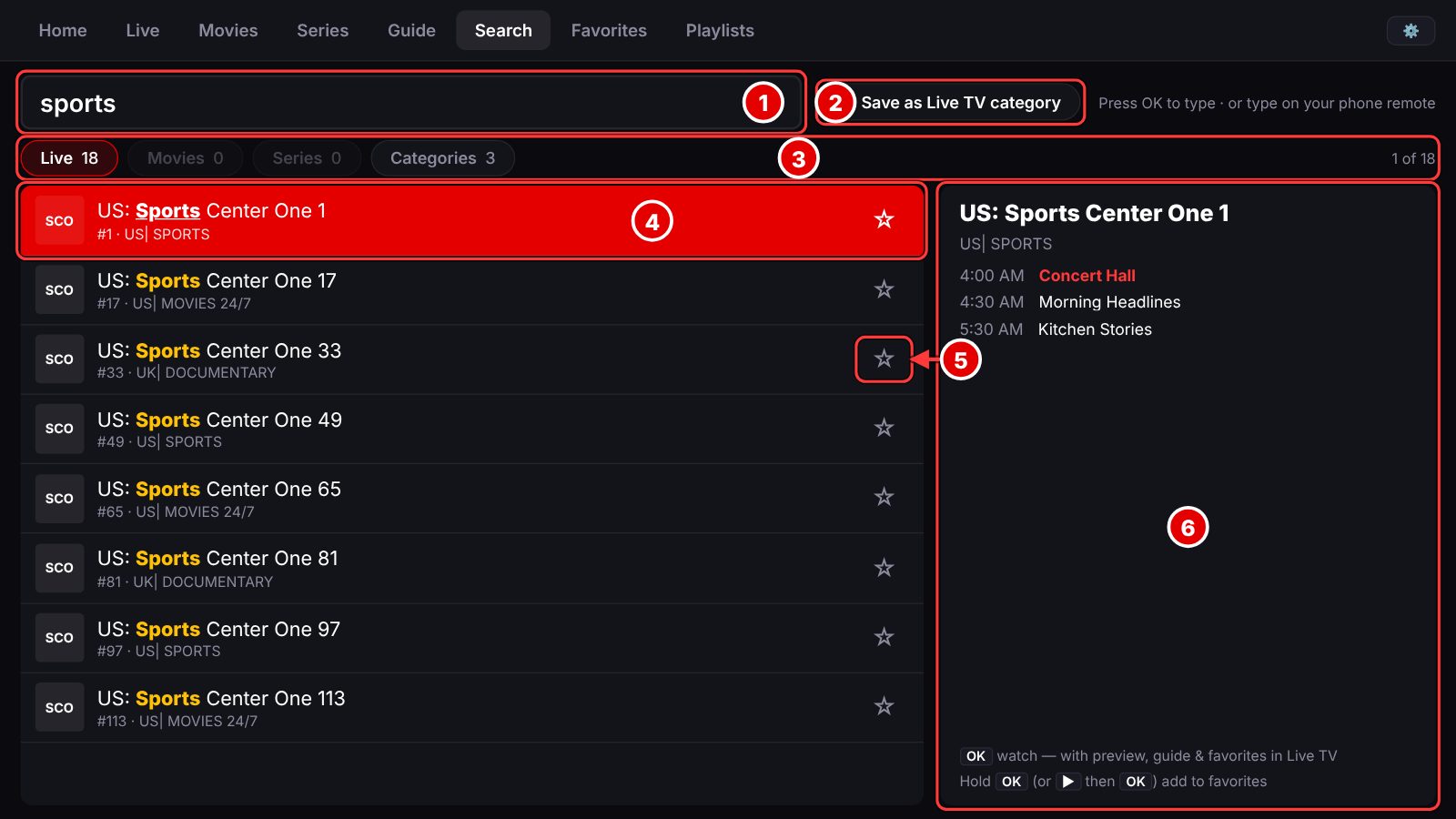
Search looks through live channels, movies, series and categories at once, and part of a word is enough. Try “esp”, “fox news” or “law order”.

Search
Turn a search into a Live TV category

After a search, choose ☆ Save as Live TV category and it appears in Live TV as its own list. Favorites › Ready-made categories adds Sports, News and Kids lists in one step.

Search · Favorites
Sort favorites into folders

Favorites › Folders lets you group channels, and one channel can sit in several folders. Favorites › Backup & restore saves your favorites, folders and saved searches on the TV.

Favorites

Your phone as a remote

Use your phone as a remote and keyboard

Open Settings › Phone remote on the TV, scan the code with your phone and enter the PIN. Your phone gets arrows, OK, volume and channel buttons, and a search box that types on the TV with your phone's keyboard. It opens in the phone's browser on the same Wi-Fi, so there is nothing to install.

Settings › Phone remote
Send things to the TV from your phone

The remote's Setup tab can send your playlist, your weather town and a TMDB key to the TV, so you do not have to type them with the TV remote.

Phone remote › Setup

Tidying up your channel list

Run the setup wizard again

Settings › Channel filters › Run setup asks a few questions and trims the list to the countries and kinds of channels you actually watch.

Settings › Channel filters
See one copy of each channel

Many playlists list the same channel as HD, FHD, 4K and Backup. With One copy per channel on, you see it once, and the player switches to another copy if the one you chose stops working.

Settings › Channel filters
Hide a channel you never watch

In Live TV, press right from a channel to reach the buttons beside the preview, then choose 🚫 Hide. The channel disappears from every list except Favorites. To bring it back, go to Settings › Channel filters and use Show again under Hidden channels.

Live TV · Settings › Channel filters
Lock categories with a PIN

Settings › Parental lock sets a 4-digit PIN and hides the categories you choose everywhere, until the PIN is entered.

Settings › Parental lock

When something looks off

The guide shows the wrong program

Settings › TV Guide › Guide time correction moves the guide an hour earlier or later. Use it only if “ON NOW” does not match what is really on.

Settings › TV Guide
The picture stutters

Settings › Playback › Safety buffer: choose Large to ride out longer hiccups. The picture then runs a few seconds further behind live. The app also reconnects by itself when a stream drops.

Settings › Playback
Start on the channel you watched last

Turn on Settings › Playback › Start on last channel and the app opens straight on it.

Settings › Playback
Ratings, artwork, weather and headlines

Movies and series show ratings, artwork and trailers when you add a free key from themoviedb.org under Settings › Home screen (or send it from the phone remote's Setup tab). The same screen turns on weather and a news-headline ticker on Home.

Settings › Home screen

Home

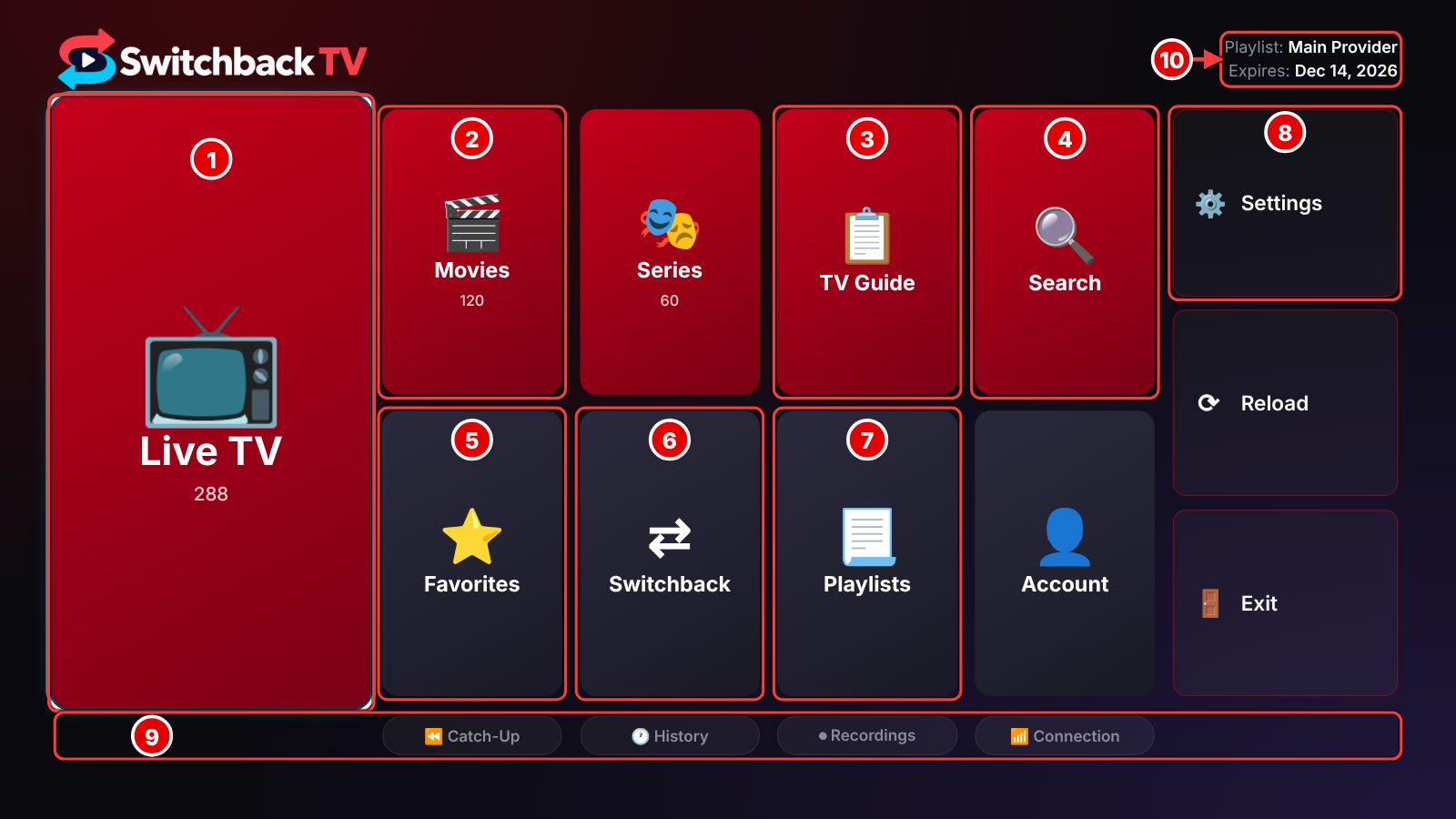
Everything starts here. Use the arrow keys to move between tiles and press OK to open one.

Home screen. Numbered arrows point to: 1 Live TV; 2 Movies and Series; 3 TV Guide; 4 Search; 5 Favorites; 6 Switchback; 7 Playlists and Account; 8 Settings; 9 More places; 10 Your playlist.
  1. 1

    Live TV. Every live channel in your playlist, sorted by category. The number is how many channels you have.

  2. 2

    Movies and Series. Your playlist's movies and series with posters. The Series tile is right next to it.

  3. 3

    TV Guide. A grid of what is on, channel by channel.

  4. 4

    Search. Find channels, movies, series and categories at once.

  5. 5

    Favorites. Your starred channels, folders and saved searches.

  6. 6

    Switchback. Up to four channel slots to jump between while you watch.

  7. 7

    Playlists and Account. Playlists adds, edits or switches your playlist. Account (next to it) shows your subscription status, expiry date and connections.

  8. 8

    Settings. Playback, guide, channel filters, parental lock, phone remote and more.

  9. 9

    More places. Catch-Up (shows that already aired), History (what you watched recently), Recordings, and Connection (a speed and response-time check to your provider).

  10. 10

    Your playlist. Which playlist is active and when your subscription expires.

Live TV

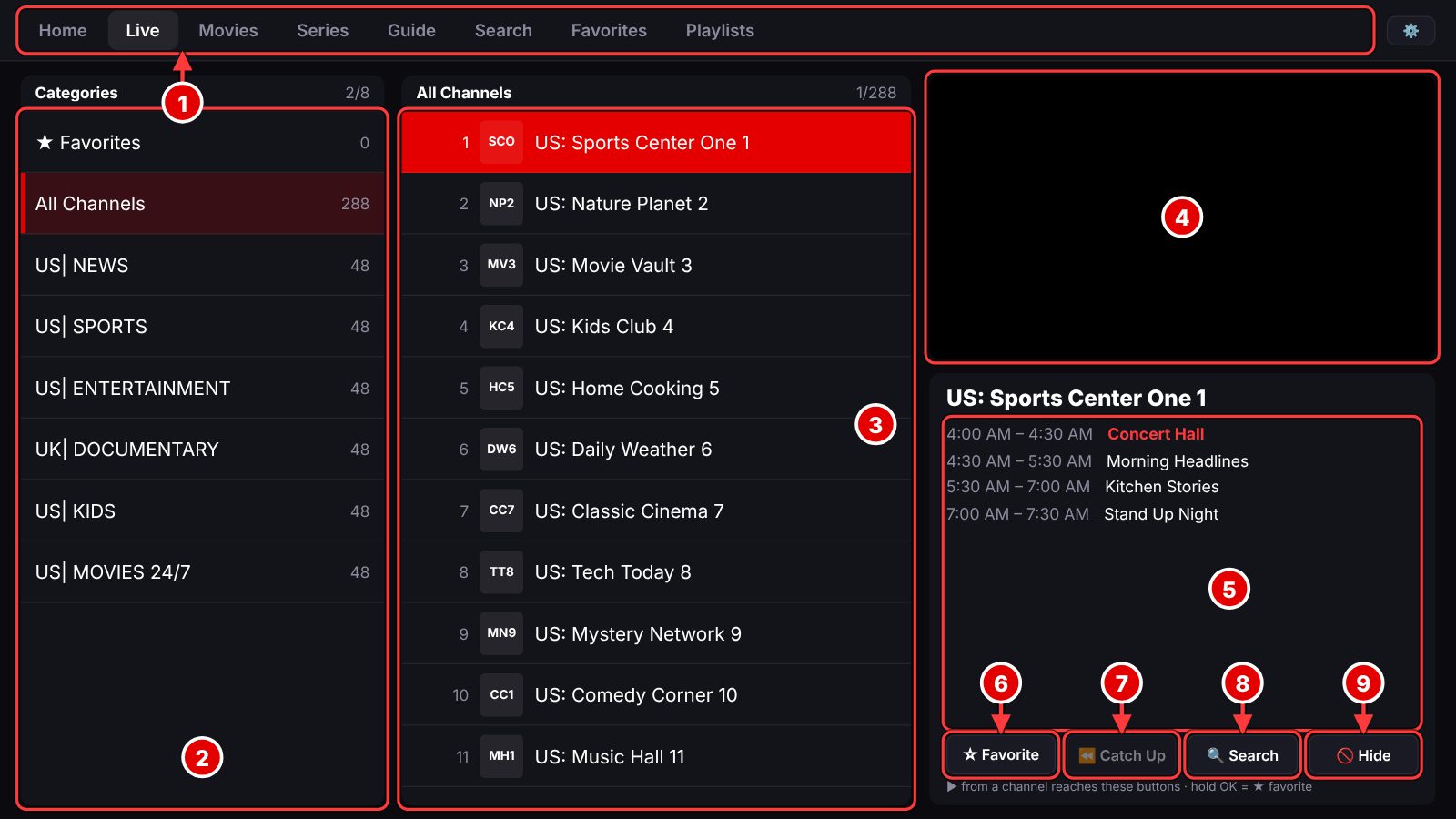
Categories on the left, channels in the middle, and a preview with what is on now and next on the right.

Live TV screen. Numbered arrows point to: 1 Top menu; 2 Categories; 3 Channels; 4 Preview; 5 On now and next; 6 Favorite; 7 Catch Up; 8 Search; 9 Hide.
  1. 1

    Top menu. Jump to any main screen from here. The gear at the far right opens Settings.

  2. 2

    Categories. Your playlist's groups. Favorites is at the top, then All Channels, then each category with its channel count.

  3. 3

    Channels. OK plays a channel. Hold OK to add or remove it from your favorites.

  4. 4

    Preview. A small live preview plays as you move through the list.

  5. 5

    On now and next. The current program and the ones coming up for the highlighted channel.

  6. 6

    Favorite. Opens a checklist: Favorites and each of your folders. Press right from a channel to reach these buttons.

  7. 7

    Catch Up. Earlier shows on this channel, when your provider keeps them. It is dimmed when it cannot.

  8. 8

    Search. Opens the Search screen.

  9. 9

    Hide. Removes the channel from your lists. You can bring it back in Settings › Channel filters.

Player bar

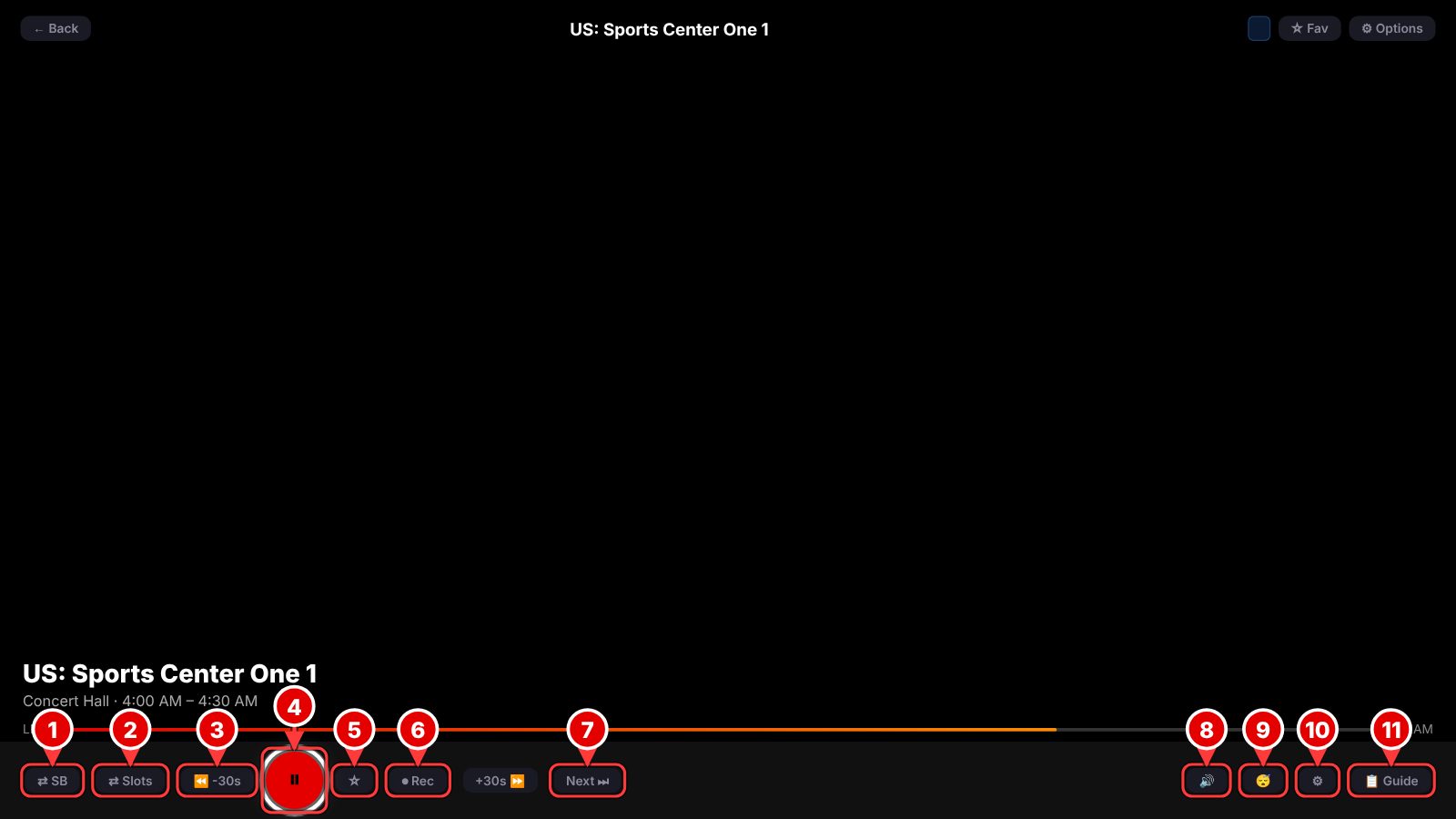
Press OK or a direction while a channel is playing to show the bar. In this sample the picture area is blank.

Player bar screen. Numbered arrows point to: 1 ⇄ SB; 2 ⇄ Slots; 3 Back and forward 30 seconds; 4 Play and pause; 5 Favorite; 6 ⏺ Rec; 7 Next; 8 Mute; 9 Sleep timer; 10 Options; 11 Guide.
  1. 1

    ⇄ SB. Switchback: jump to the next channel in your slots. Holding OK does the same thing.

  2. 2

    ⇄ Slots. Opens your four slots, so you can save what you are watching in one.

  3. 3

    Back and forward 30 seconds. Jump back 30 seconds, with +30s on the other side to jump forward. It works inside what the stream, your recording or a catch-up show has available.

  4. 4

    Play and pause. On live TV, pausing keeps saving, so you can pick up where you stopped.

  5. 5

    Favorite. Adds or removes this channel from your favorites.

  6. 6

    ⏺ Rec. Starts recording this channel. It becomes ■ Stop rec while recording.

  7. 7

    Next. Goes to the next channel in your list.

  8. 8

    Mute. Turns the sound off and on.

  9. 9

    Sleep timer. Stops playback after 15 minutes to 2 hours.

  10. 10

    Options. Video quality, audio track and subtitles. The Menu key opens it too.

  11. 11

    Guide. Closes the player and opens the TV Guide.

TV Guide

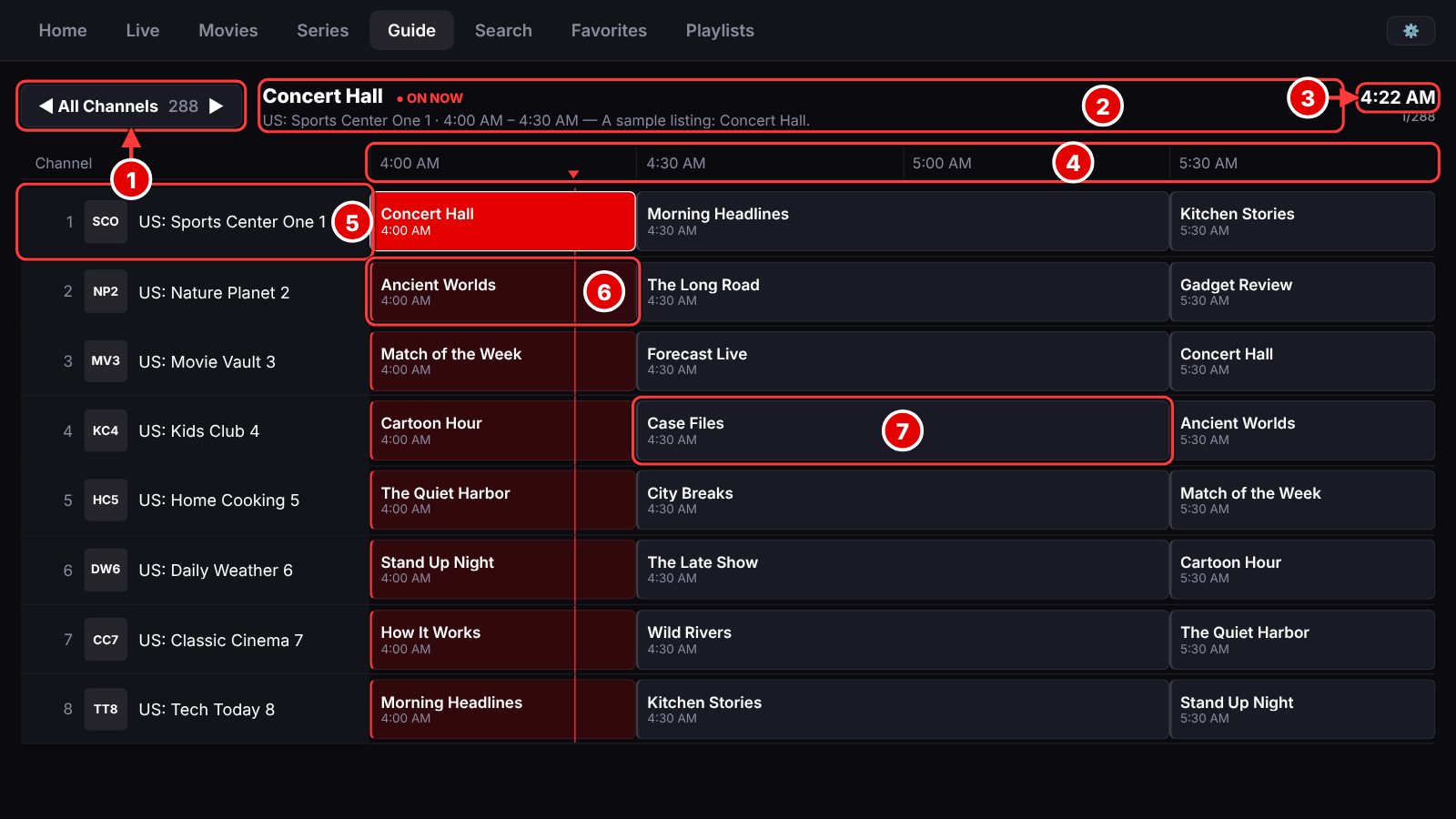
A grid of programs by time. Left and right move through time, up and down move between channels.

TV Guide screen. Numbered arrows point to: 1 Category; 2 The highlighted program; 3 Time and place; 4 Time bar; 5 Channel; 6 On now; 7 Coming up.
  1. 1

    Category. Choose which group of channels the guide lists.

  2. 2

    The highlighted program. Its title, channel, time and description.

  3. 3

    Time and place. The current time, and where this channel sits in the list.

  4. 4

    Time bar. Half-hour slots. Keep pressing right to look further ahead, or left to go back.

  5. 5

    Channel. The channel's number, logo and name.

  6. 6

    On now. Programs on the air are marked. OK plays the channel.

  7. 7

    Coming up. OK on a show that has not started asks whether to record it (in the Switchback TV app on your TV). OK on a scheduled show cancels it. On an earlier show, OK plays catch-up if your provider kept it.

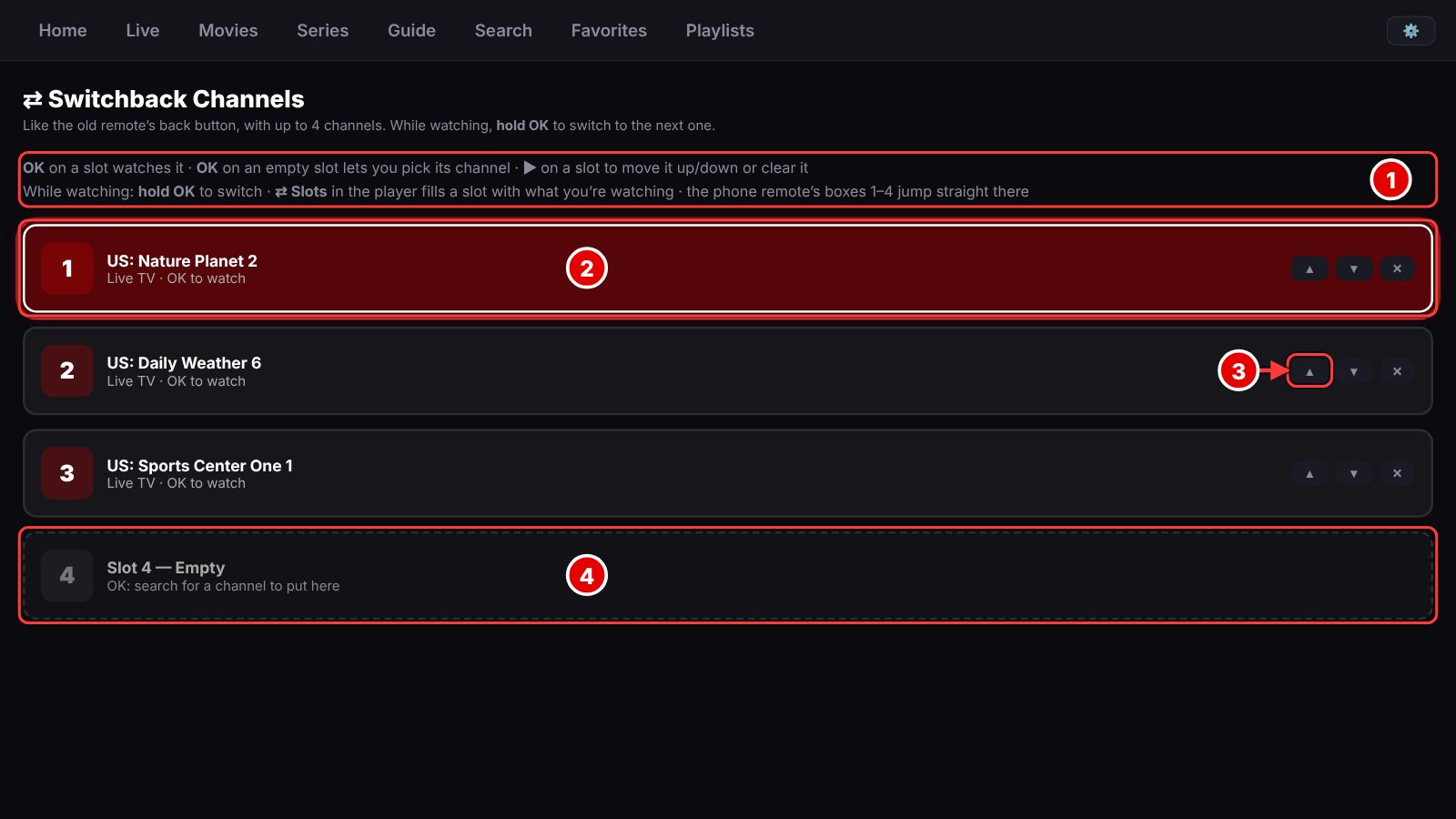
Switchback

Four slots for the channels you flip between. Like the back button on an old remote, but for streaming.

Switchback screen. Numbered arrows point to: 1 How it works; 2 A filled slot; 3 Move and clear; 4 An empty slot.
  1. 1

    How it works. While you watch, hold OK to jump to the next slot. Press ⇄ Slots in the player to save what you are watching, or use boxes 1 to 4 on the phone remote.

  2. 2

    A filled slot. OK watches that channel.

  3. 3

    Move and clear. Press right on a slot to reach ▲ and ▼ (move it up or down) and ✕ (empty it).

  4. 4

    An empty slot. OK on it lets you search for a channel to put there.

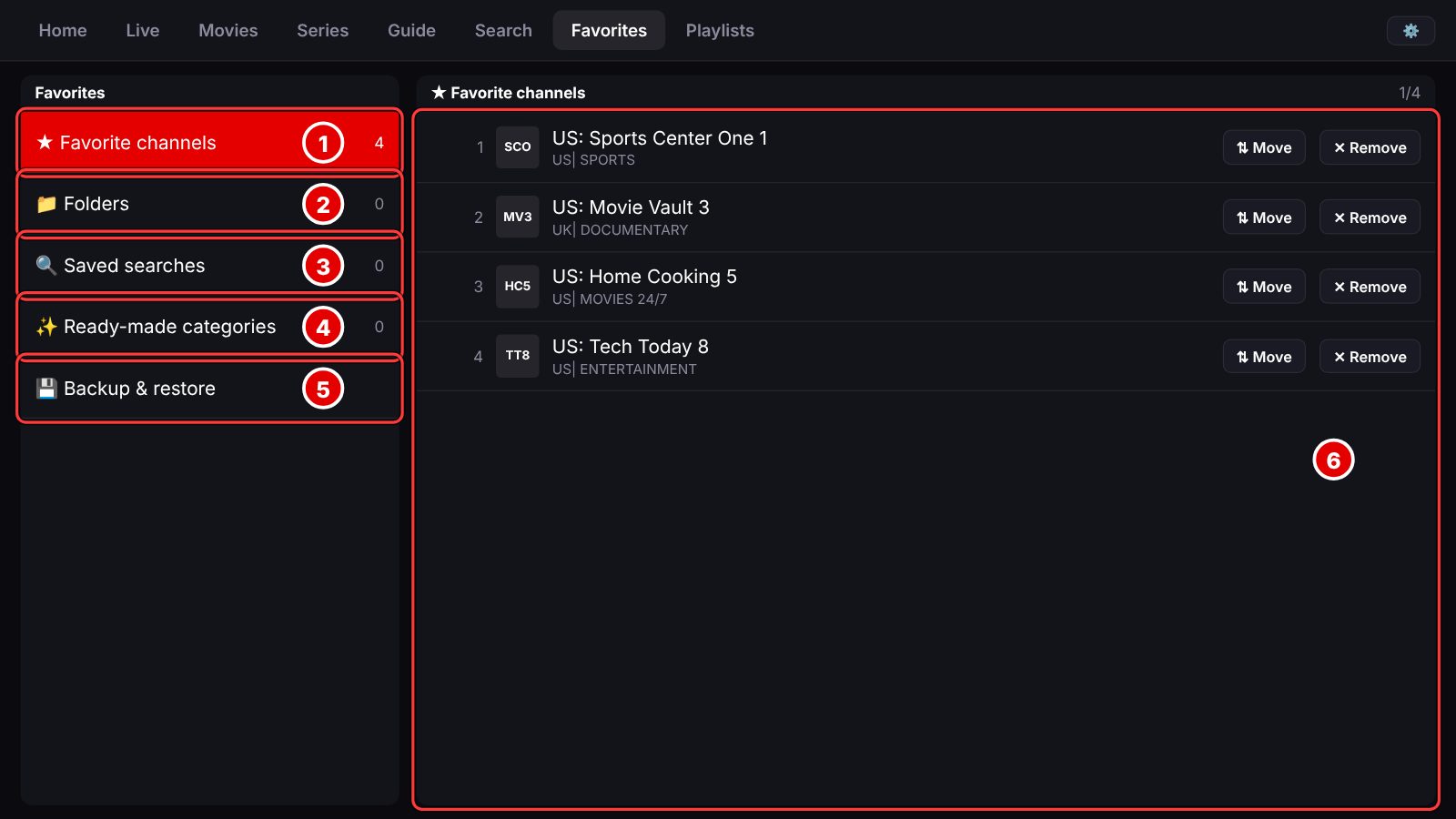
Favorites

Your starred channels and the ways to organize them.

Favorites screen. Numbered arrows point to: 1 Favorite channels; 2 Folders; 3 Saved searches; 4 Ready-made categories; 5 Backup and restore; 6 The list.
  1. 1

    Favorite channels. Everything you starred. OK plays a channel, and hold OK on it removes it.

  2. 2

    Folders. Group channels your own way. A channel can be in several folders.

  3. 3

    Saved searches. Searches you turned into Live TV categories.

  4. 4

    Ready-made categories. Adds Sports, News and Kids lists in one step.

  5. 5

    Backup and restore. Saves your favorites, folders and saved searches on this TV, and brings them back later.

  6. 6

    The list. Each channel has Move and Remove buttons: press right from a channel to reach them. Move lets you reorder your favorites.

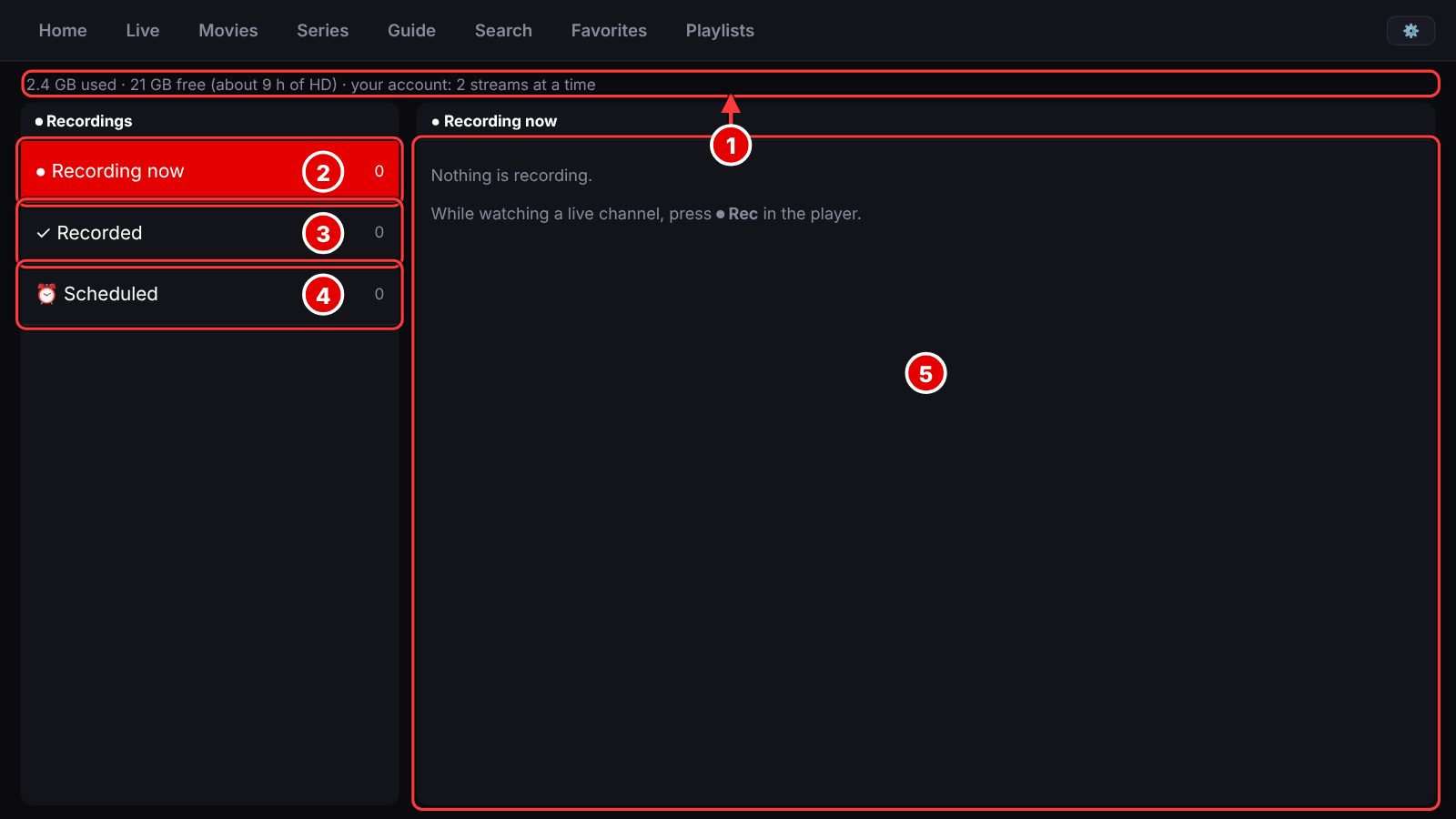
Recordings

Recording works in the Switchback TV app on your TV and uses the TV's storage.

Recordings screen. Numbered arrows point to: 1 Space left; 2 Recording now; 3 Recorded; 4 Scheduled; 5 The list.
  1. 1

    Space left. How much room recordings use, how much is free, and how many streams your account allows at once.

  2. 2

    Recording now. Shows being recorded right now, with a Stop button.

  3. 3

    Recorded. Finished recordings. Watch or delete them.

  4. 4

    Scheduled. Shows you set up in the TV Guide. Cancel any you do not want.

  5. 5

    The list. Whatever is in the selected section. To start a recording, press ⏺ Rec in the player.

Settings

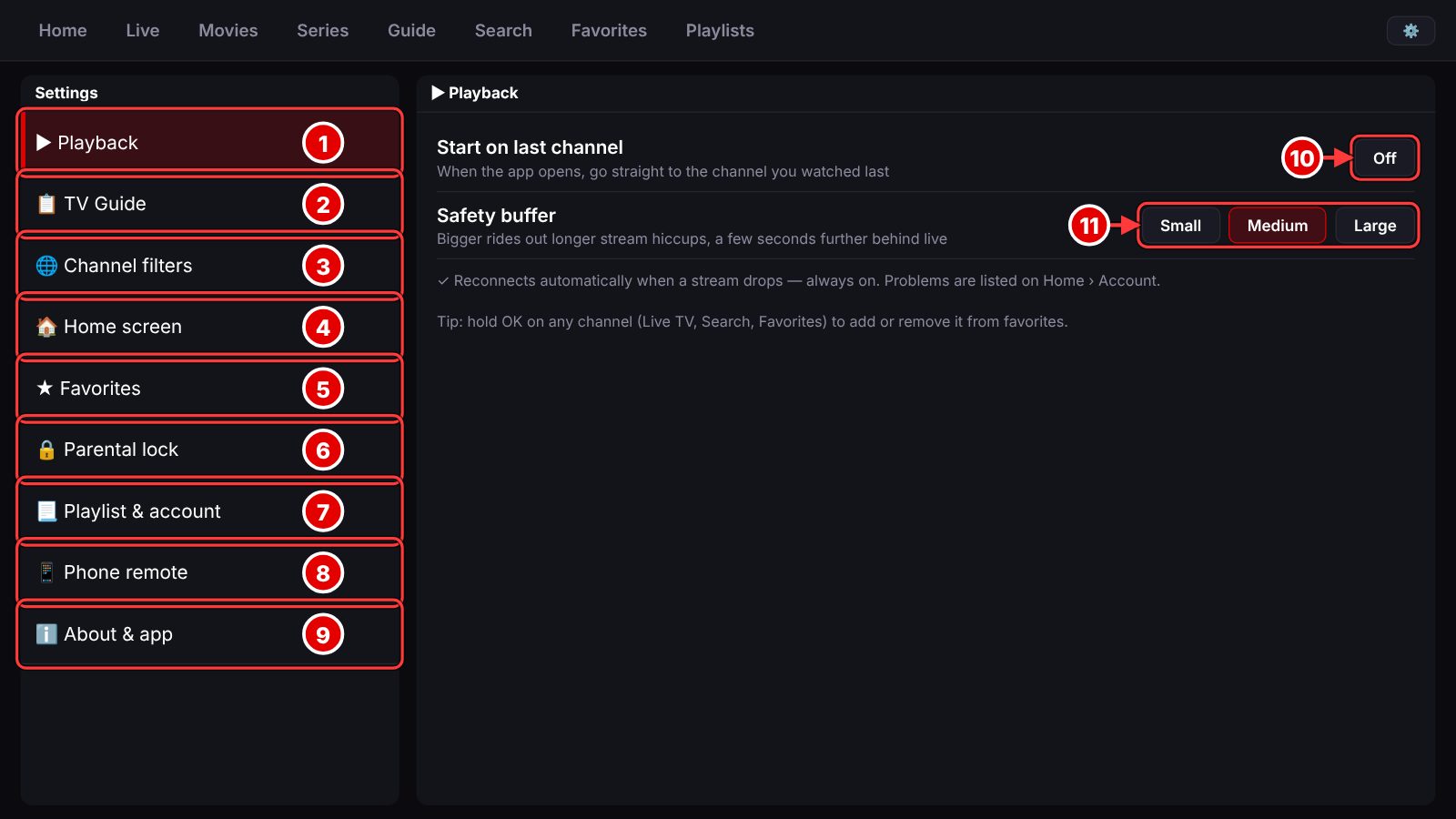
Nine sections down the left; the right side shows the one you pick. Playback is open here.

Settings screen. Numbered arrows point to: 1 Playback; 2 TV Guide; 3 Channel filters; 4 Home screen; 5 Favorites; 6 Parental lock; 7 Playlist and account; 8 Phone remote; 9 About and app; 10 Start on last channel; 11 Safety buffer.
  1. 1

    Playback. Start on the last channel, and the safety buffer.

  2. 2

    TV Guide. Move the guide's clock an hour either way, or refresh the guide data.

  3. 3

    Channel filters. Trim your lists by country, kind of channel, town and more (next screen).

  4. 4

    Home screen. Weather town, news headlines and your TMDB key for movie ratings and artwork.

  5. 5

    Favorites. A shortcut to the Favorites screen.

  6. 6

    Parental lock. A 4-digit PIN that hides the categories you choose.

  7. 7

    Playlist and account. Your playlists, how fresh the saved channel lists are, and a backup server.

  8. 8

    Phone remote. The code and PIN that connect your phone.

  9. 9

    About and app. The app version, your TV's network details, and options to clear favorites and history or exit the app.

  10. 10

    Start on last channel. Opens the app straight on the channel you watched last.

  11. 11

    Safety buffer. A bigger buffer rides out longer hiccups but runs a few seconds further behind live.

Channel filters

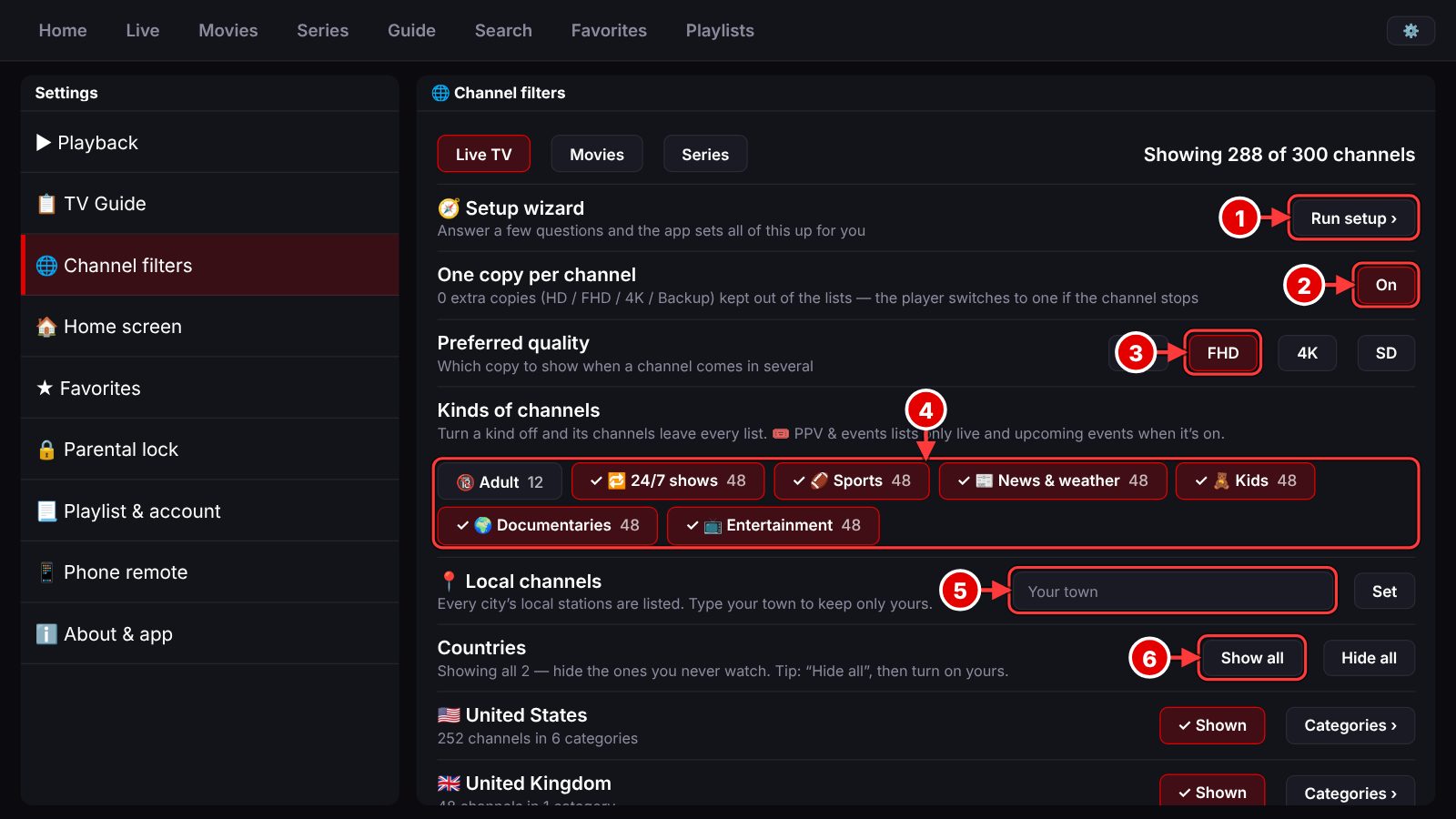
Playlists often hold thousands of channels. These controls trim the list to what you watch. Live TV, Movies and Series each have their own.

Channel filters screen. Numbered arrows point to: 1 Setup wizard; 2 One copy per channel; 3 Preferred quality; 4 Kinds of channels; 5 Local channels; 6 Countries.
  1. 1

    Setup wizard. Asks a few questions, then sets up the filters for you.

  2. 2

    One copy per channel. Shows HD, FHD, 4K and Backup copies of a channel once. The player switches to another copy if one stops.

  3. 3

    Preferred quality. Which copy to show when a channel comes in several.

  4. 4

    Kinds of channels. Turn a kind off and its channels leave every list: adult, 24/7 shows, sports, news, kids and so on.

  5. 5

    Local channels. Type your town to keep only your own local stations.

  6. 6

    Countries. Hide the countries you never watch with Hide all, then turn on yours. Show all brings everything back.

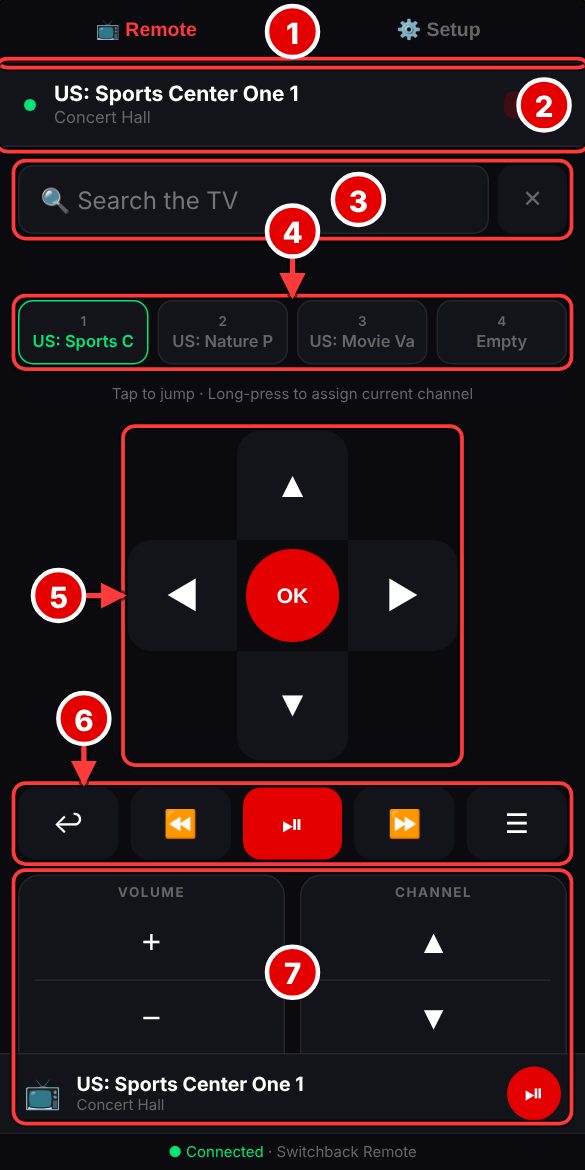
Phone remote screen. Numbered arrows point to: 1 Remote and Setup; 2 Now playing; 3 Search; 4 Switchback slots; 5 Arrows and OK; 6 Back, playback, Menu; 7 Volume and channel.

Phone remote

Scan the code in Settings › Phone remote, enter the PIN, and your phone controls the TV from its browser. No app to install, and it works on the same Wi-Fi.

  1. 1

    Remote and Setup. Remote is shown here. Setup sends your playlist, weather town and TMDB key to the TV.

  2. 2

    Now playing. The channel and program on the TV.

  3. 3

    Search. Type with your phone's keyboard and the TV searches.

  4. 4

    Switchback slots. Tap a box to jump straight to that slot's channel.

  5. 5

    Arrows and OK. Works like the TV remote's direction pad.

  6. 6

    Back, playback, Menu. Back, rewind, play and pause, fast-forward, and the Menu key.

  7. 7

    Volume and channel. Volume, mute and channel up and down.

Still stuck?

Can't find something? Email support@switchback.tv and say which screen you were on.